Go to the settings menu of your phone to adjust the WiFi settings.
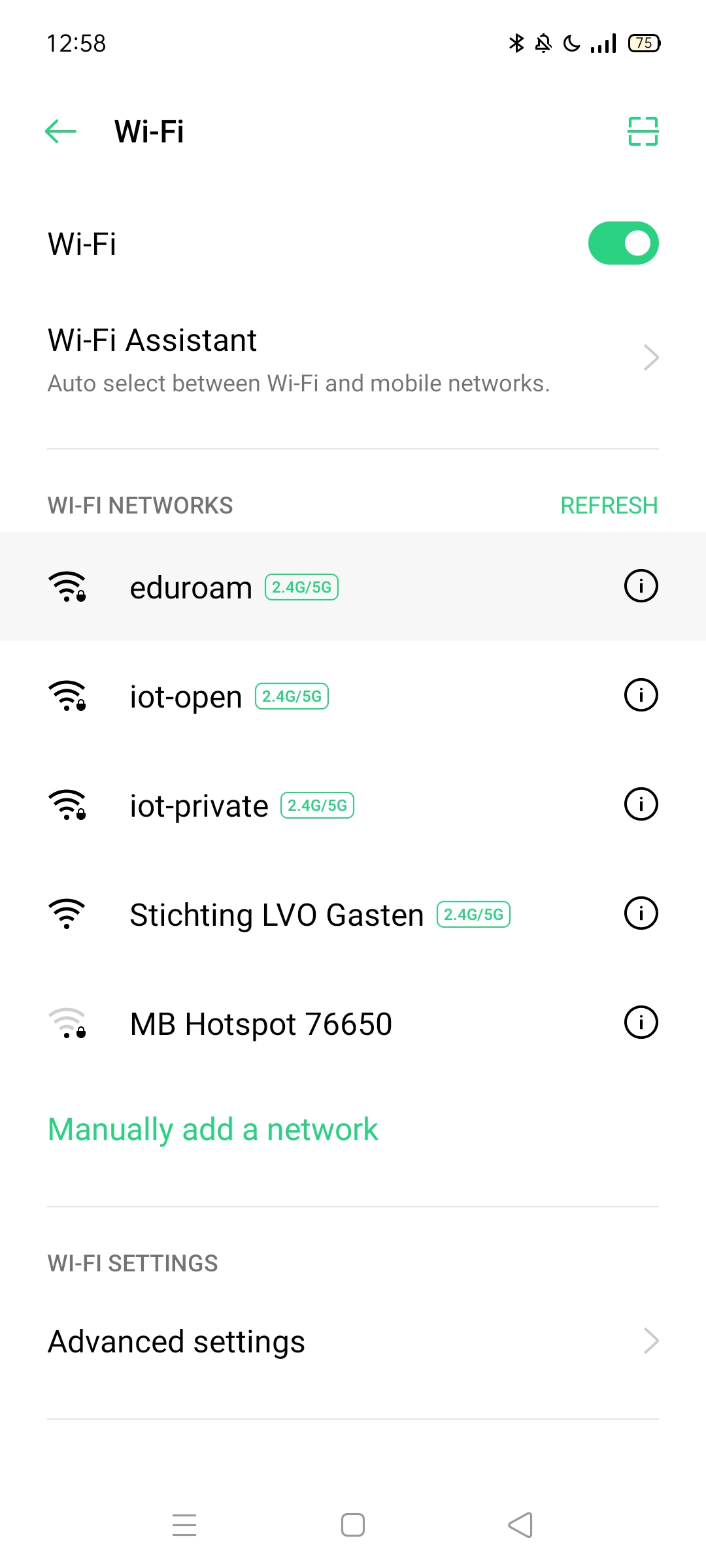
Choose Eduroam from the list of available networks.

Set the EAP method to PEAP.

In the Identity field, enter your username (without @stichtinglvo.nl or @leerling.stellamariscollege.nl at the end). For example, ST123456 is an example of a username.

Enter your school password in the password field.*

Leave the Anonymous Identity field empty.

Set the certificate to None or Do not validate.

Go to Advanced in the same menu.

In Advanced, choose MSCHAPV2 for Phase 2 Verification (Sometimes this phase is on the same page as all the other eduroam WiFi settings).

Restart your phone (if necessary).*
